
Allow WordPress Users to Manage Lower-Level Accounts
We had a question from a user who wondered if they could restrict users to editing lower-level users in WordPress.
For example, is it possible to allow Authors to only edit Subscribers and Contributors? Or is it possible to allow Contributors to edit only Subscribers?
Yes, it is possible with the PublishPress Permissions Pro plugin.
The use-case for the customer here is to safely expand who can manage users. They want to allow more than just Administrators to manage users, but also prevent accidental privilege escalation.
WordPress uses a hierarchy of user roles. Administrators have the highest level of access, followed by Editors, Authors, Contributors, and Subscribers. By default, users who can manage accounts may be able to interact with accounts above their own level. In this tutorial, we’ll show you how to limit users so they can only manage accounts with lower-level roles.
Table of Contents
A Real World Example
This table below shows a practical example of what we’re aiming to do. Imagine a membership site with this editorial team structure. This structure allows department managers and content leads to handle day-to-day user administration without requiring Administrator access.
| Role | Can Manage |
|---|---|
| Administrator | All users |
| Editor | Authors and Contributors |
| Author | Contributors |
| Contributor | No user management |
What do we mean by “manage users”? This covers these tasks:
- Edit profile information
- Reset passwords
- Change assigned roles
- Create new users
Introducing User Role Levels
When you install WordPress, you’ll see five user roles. These roles are in a hierarchy from Subscriber up to Administrator:
- Subscriber
- Contributor
- Author
- Editor
- Administrator
Subscribers are at the bottom of the hierarchy and have very few permissions. Each subsequent role has more permissions leading up to Administrator, which can do anything on your website. This hierarchy is controlled by the User Role Level setting. Here are the user role levels for the five default WordPress roles:
- Subscriber: 0
- Contributor: 1
- Author: 2
- Editor: 7
- Administrator: 10
For WordPress Multisite users, please note that Super Admin accounts remain outside the normal role hierarchy and cannot be easily managed through these settings.
The Default WordPress Behavior
On a normal WordPress website, only Administrators can edit and create users. If you want to grant this power to other users, you can do that with the PublishPress Capabilities plugin. Let’s use the example of the Author role.
Go to the “Capabilities” screen and give these permissions to Authors. These permissions allow them to access the “Users” link in the WordPress admin area and also create new user accounts.
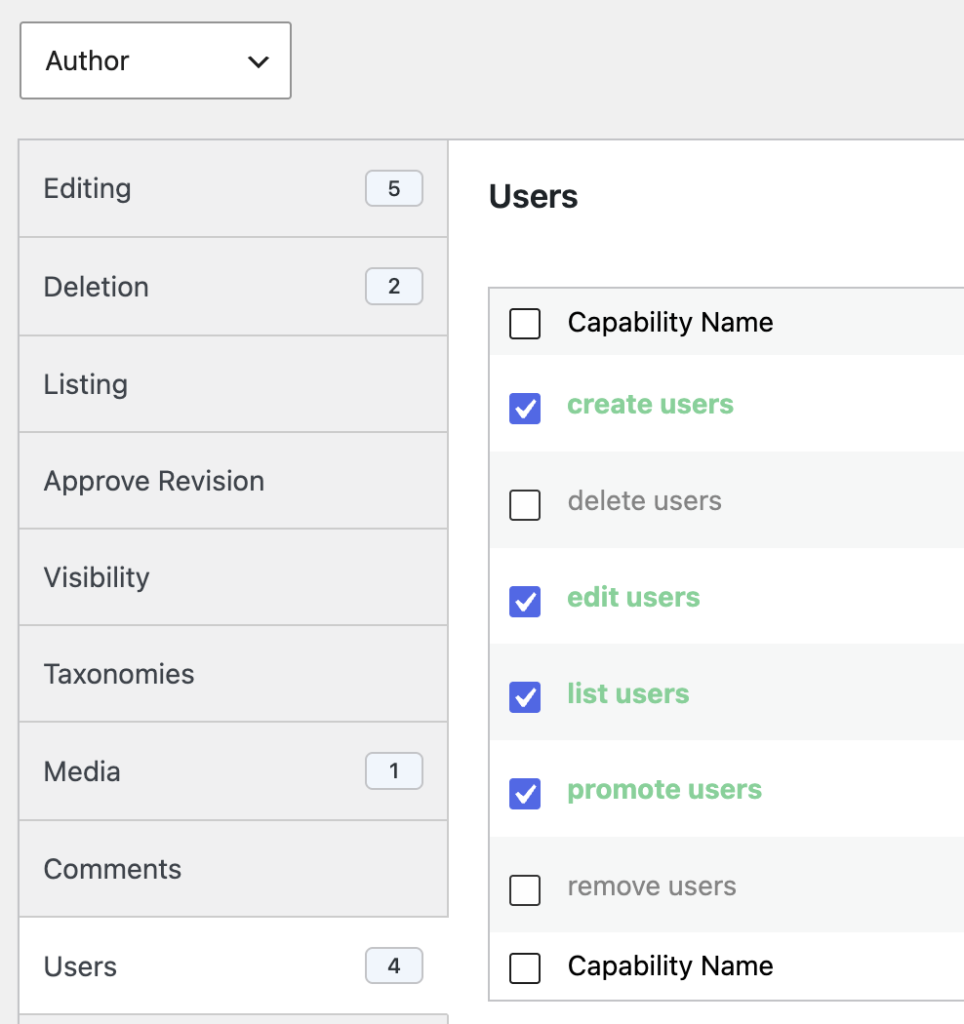
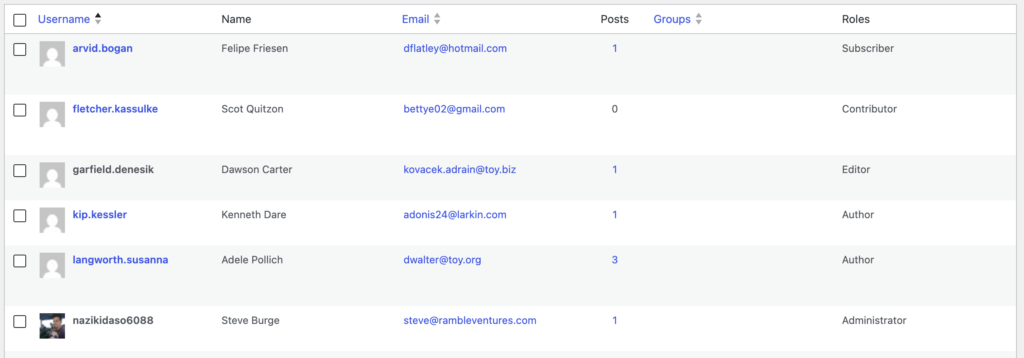
You can now check what an Author sees using the “User Testing” feature in PublishPress Capabilities:
- They can see all the users, including Editors and Administrators.
- They can only edit users in equal roles (other Authors) and lower roles (Contributors and Subscribers).
The User Management feature
PublishPress Permissions Pro has a feature called “User Management”. If this feature is enabled, it can stop users from editing or viewing the account of anyone with a higher or equal level.
In your WordPress admin area, go to Permissions > Settings > Advanced and find “User Management”.

This feature has two key options:
- equal or lower role levels: Users who can edit or view users can only modify users in their own role, or roles with less access.
- lower role levels: Users who can edit or view users can only modify users in roles with less access.

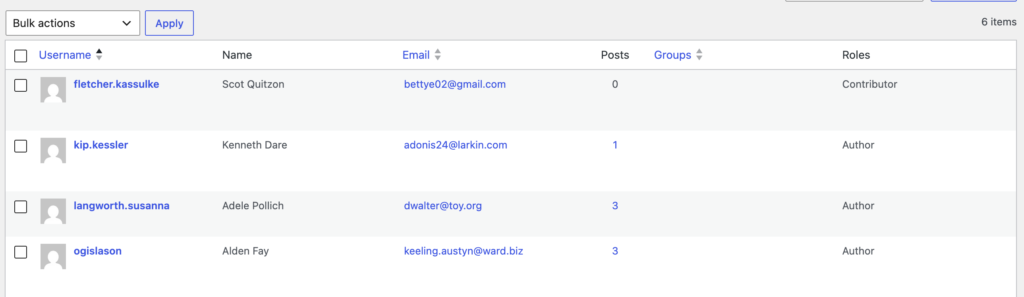
If you choose “equal or lower role levels” in the User Management area, this screenshot shows what the Author will see. They will be able to edit users in the Author, Contributor and Subscriber roles. They will not be able to see users in higher-level roles (Administrator and Editor).
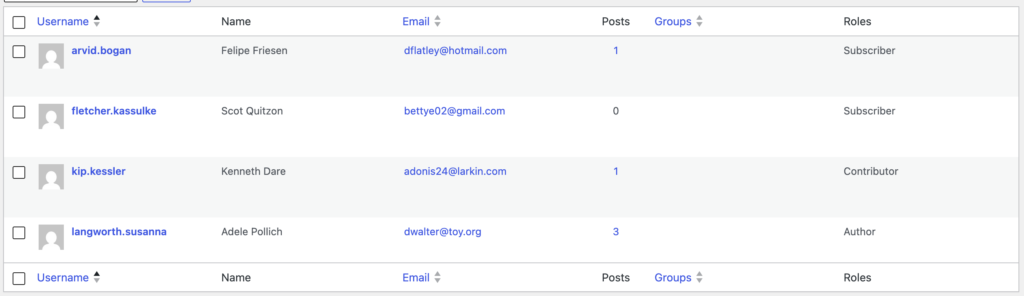
If you choose “lower role levels” in the User Management area, this screenshot shows what the Author will see. They will be able to edit users Contributor and Subscriber roles. They can edit their own account, but will not be able to see or edit other Authors.
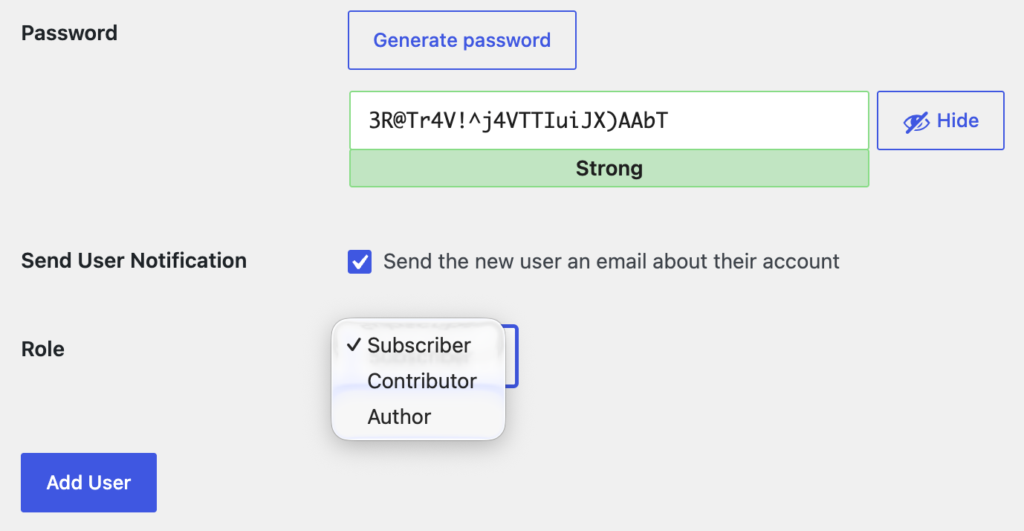
These limitations will also apply when it comes to creating users. If you choose “equal or lower role levels“, the users in the Author role will only be able to assign users to the Author, Contributor, or Subscriber roles.
Hopefully this guide will be useful for you also if you want more control over who can edit and create users on your WordPress site. With the PublishPress Permissions Pro plugin, you can ensure that users only manage accounts below their own role level. This helps maintain a clear permission hierarchy and prevents accidental changes to higher-level accounts.
Do More With PublishPress Permissions
Managing lower-level accounts is just one way to create a secure WordPress permission structure. You may also want to learn about WordPress User Role Level to understand how WordPress determines role hierarchy, or see how to customize permissions for a single user without creating additional roles. For broader permission management, PublishPress also allows you to grant editing access to specific categories and assign multiple users to a single post, making it easier to delegate responsibilities while maintaining control.
The Best Plugin to Control Access to Your WordPress Content
PublishPress Permissions allows you to enable or deny access to posts, pages, categories, tags and more. You can control who can view and edit your WordPress content.
