
The New Content Board in PublishPress Planner
One of our key goals for this year is to build SaaS-style features in WordPress so you don't need an extra service to plan your content. Why use Trello, ClickUp, Notion, or other products when you already have WordPress?
We've just completed another step towards that goal with the release of “Content Board”. This is a kanban board for planning your WordPress content, and you'll find it in the PublishPress Planner plugin.
Table of Contents
Video Guide to the Content Board
Introducing the Content Board Screen
The Content Board screen provides one column for each status. So you start with columns for “Draft”, “Pending Review”, “Published” and “Scheduled”.
Each post on this screen is referred to as a “card” and has details such as the Post date, Title, Post type, and Author.
You can customize the filters and card details that are used on this screen. Here is our guide to custom filters and here is our guide to custom card details.
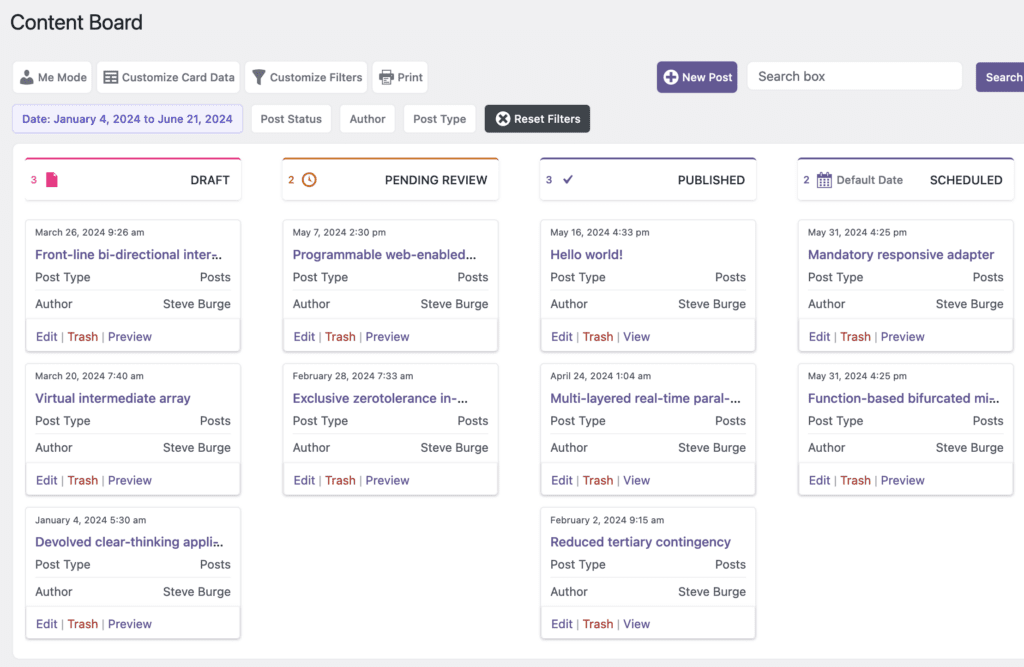
You drag-and-drop the posts to change their status. In the image below, we're moving a post from the “Draft” status to the “Pending Review” status.

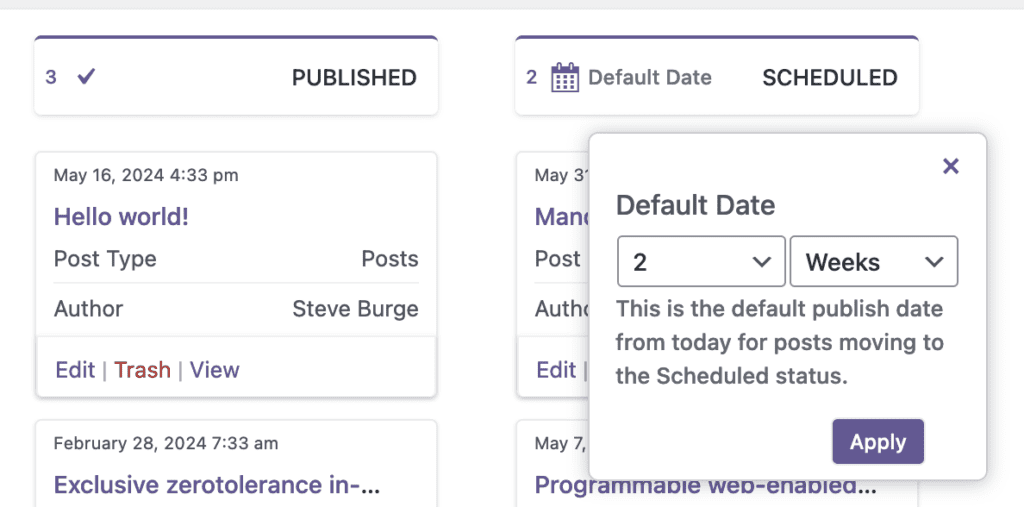
You can move posts to any status, including the “Scheduled” status. If you move a post to the “Scheduled” status, it will automatically be given the date chosen in the “Default Date” setting, as in this screenshot below.
If you want to add more statuses, this is possible with the PublishPress Statuses plugin. If you have more statuses than appear on the screen, there will be a horizontal scrollbar, as in this screenshot below.

Customizing the Content Board Screen
This Content Board screen is highly customizable. You can add your own filters. You can also control the data on the card.
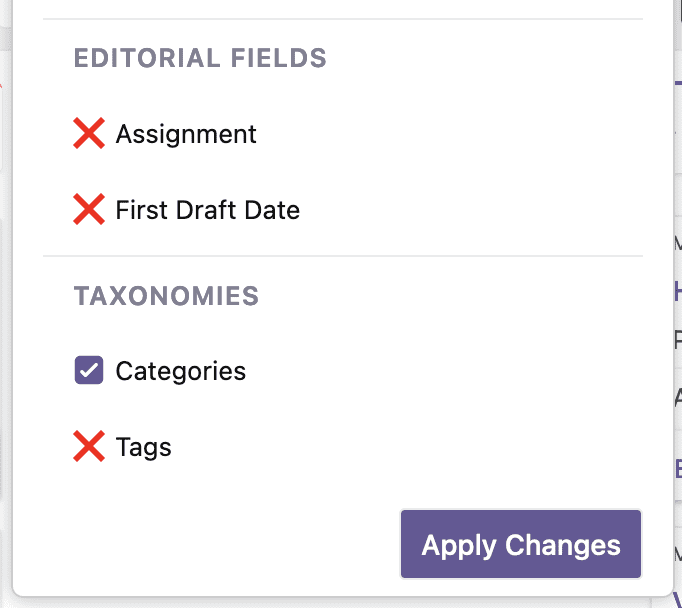
Click the “Customize Card Data” and you can add almost any data stored on your WordPress site. In this screenshot below, you can see columns for Editorial Fields and Taxonomies. If you click any of these elements, they will be added as new columns on your Content Overview screen.
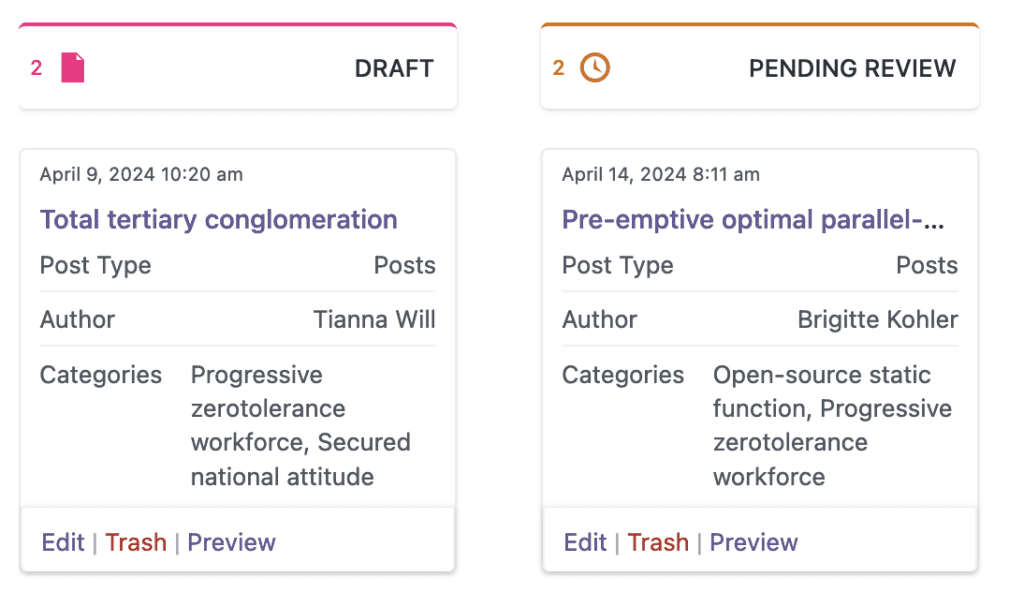
This next screenshot shows the cards with the extra “Categories” data item.
Here's another example using the “SEO score”, “Readability”, and “Focus Keywords” features in Yoast SEO. This integration is available in the Pro version of PublishPress Planner.

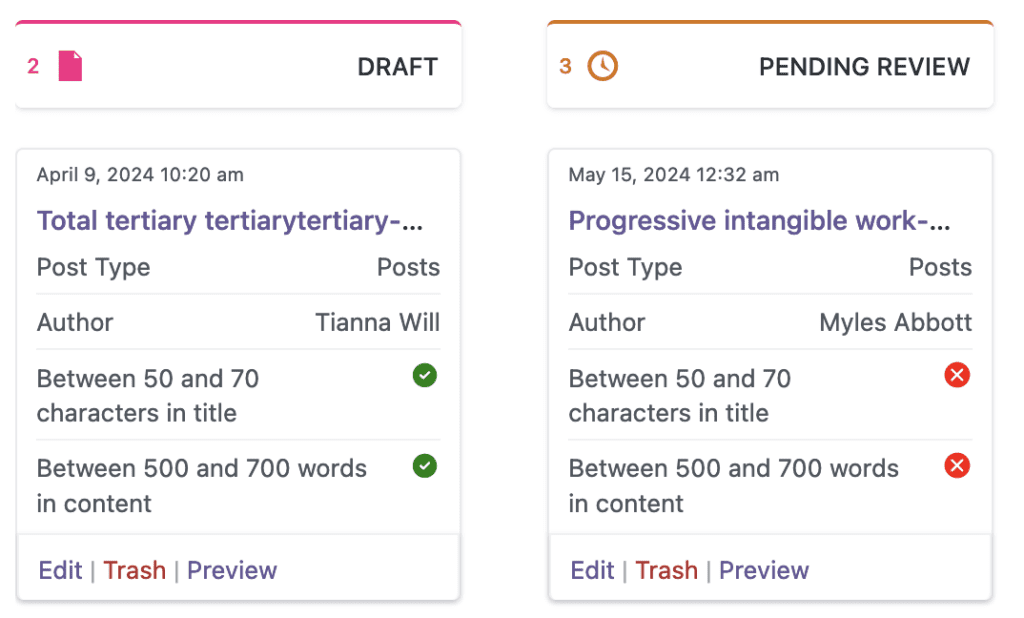
Here's another example using the PublishPress Checklists plugin. This integration is also available in the Pro version of PublishPress Planner.
What's Next for PublishPress Planner?
We're going to keep working towards the goal of SaaS-style features in WordPress so you don't need an extra service to plan your content. The next step will be to build editing modals so you can edit your posts directly from the Content Board or other screen. These modals will be available for the Content Calendar, Content Overview, and Content Board screens.

The Best Plugin to Create Workflows for Your WordPress Content
PublishPress Statuses allows you to add custom statuses for your posts. You can use these statuses to create custom publishing workflows.

The Best Plugin to Plan and Manage Your WordPress content
PublishPress Planner has all the tools you need to plan and schedule WordPress content, including a Content Calendar, Kanban Board, editorial notifications and more.

Publish Consistently Excellent Content in WordPress
When you use PublishPress Checklists, you can define tasks that authors must complete before content is published. You can ensure that all your WordPress posts meet your high standards.

Thank you so much! I just moved my redaction (15 enthusiastic but not the most digital wonders) from trello to planner. This will really help them and therefore help me organizing them… eh, the content. 🙂
That’s great to hear, thanks Annemiek. Please let us know if you have suggestions for improving the plugin.