
Choose Default and Locked Post Statuses in WordPress
The PublishPress Statuses plugin now allows you to choose default visibility statuses for new posts.
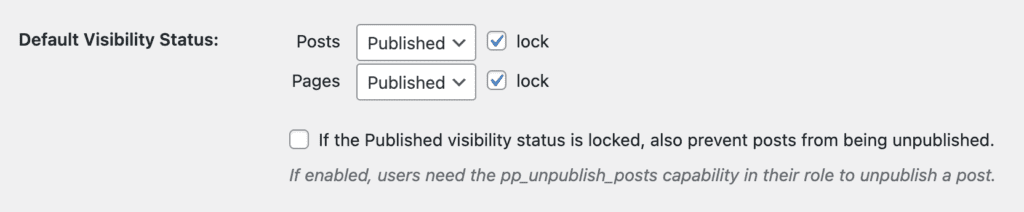
You can also lock those statuses so new posts are forced to have these statuses.
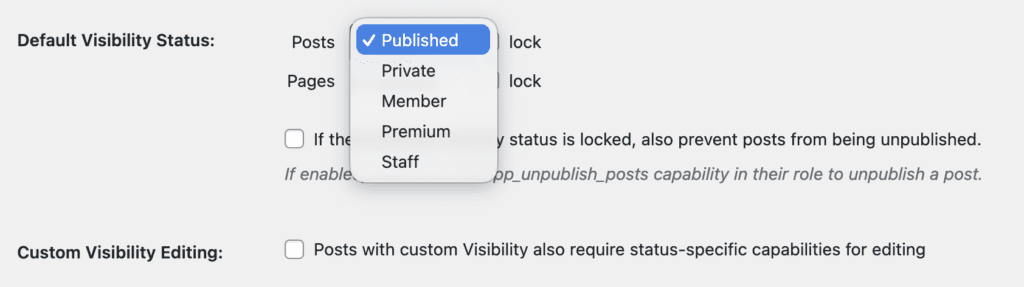
The default visibility statuses in WordPress are “Published” and “Private”, but it’s possible to add more using the PublishPress Statuses plugin.
This feature is really helpful if you want to make sure posts are never unpublished, or changed, so a different audience can see them. For example, one customer who wanted this feature will work on their content on a test site and then move the content to their live site. Any posts on the live site must be “Published”.
Table of Contents
How the Default Visibility Status works
Let’s take a look at how this new feature works in PublishPress Statuses.
- Go to Statuses > Settings in your WordPress admin menu.
- The default visibility will be set to “Published”, which is the normal approach in WordPress.
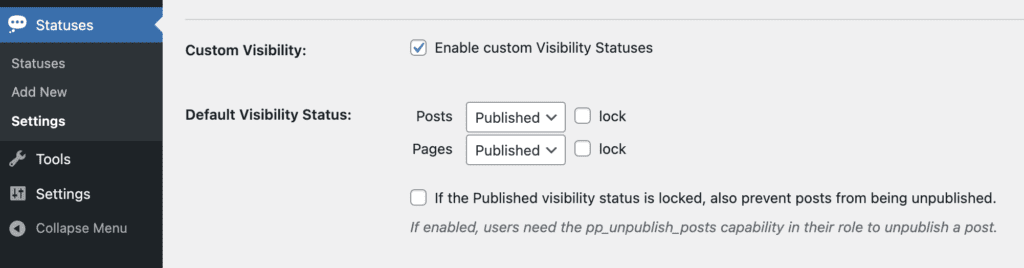
- You can choose another default visibility status from the dropdown, as in this screenshot below. When you publish new posts, they will all default to the status you choose here.
- You can also check the “Lock” box, which means that users will not be able to change the visibility.
What users see with locked statuses
Let’s see what happens when a status is locked. We’ll use the example of posts locked to the “Published” status.
- We are testing as a user who is not an Administrator. Users in the Administrator role are exempt from this lock.
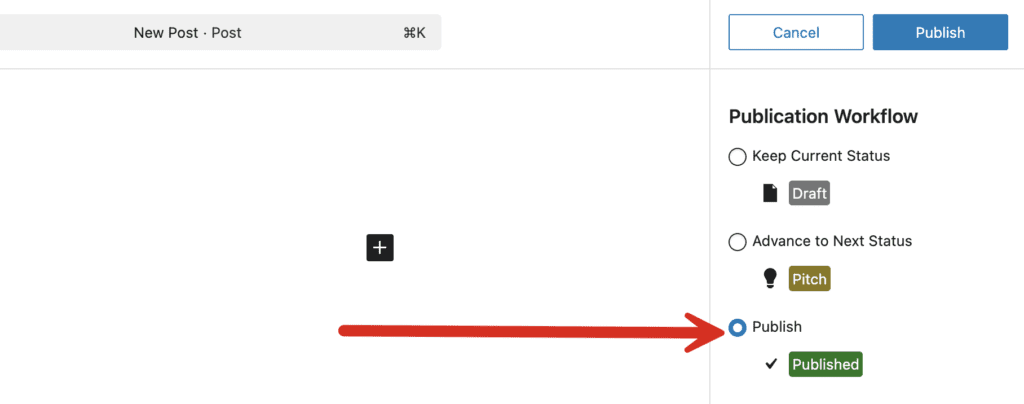
- We create a new post and click “Publish” when the post is ready. You can see in the screenshot below that the post is moving to the “Published” status.
- After you have published your post, come back to the editing screen.
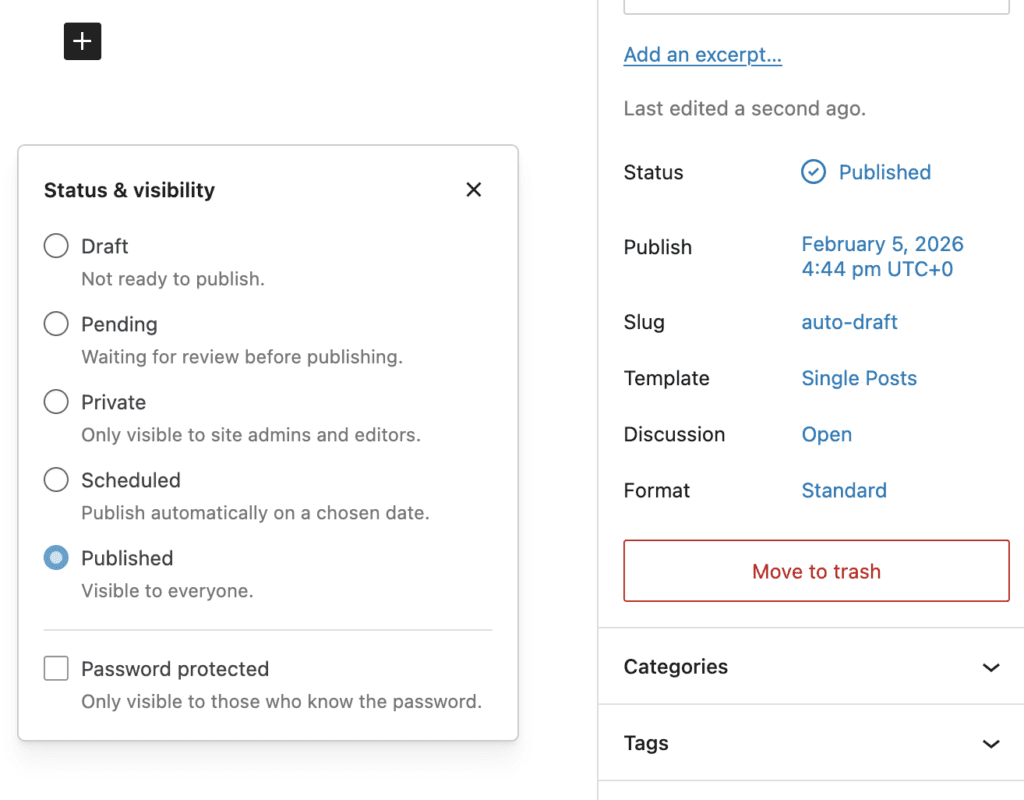
- The “Status & Visibility” box will be visible but it will not be possible to change the status. The post is locked to the “Published” status.

Create workflows for your WordPress content
PublishPress Statuses allows you to add custom statuses for your posts. You can use these statuses to create custom publishing workflows.
