
User Switching in WordPress and Testing User Accounts
If you run a WordPress website with many users, you probably have to answer account questions or solve website bugs for your users.
Here at PublishPress, we rely heavily on the User Testing feature in the PublishPress Capabilities plugin. This allows us to browse our site and see exactly what the user sees. User Testing is useful for troubleshooting permission problems, testing membership sites, reviewing customer experiences, and verifying role-based access controls.
We can test the user’s account without needing to reset their password or create a duplicate version of their account.
Table of Contents
Video Guide to User Testing
How to Use the User Testing Feature
To follow this tutorial, make sure you have the PublishPress Capabilities plugin installed.
For the purpose of this tutorial, we will create one user in each WordPress role. In addition to “Administrator”, there are four more user roles: Subscribers, Contributors, Authors, Editors.
- Click Users > Add New.
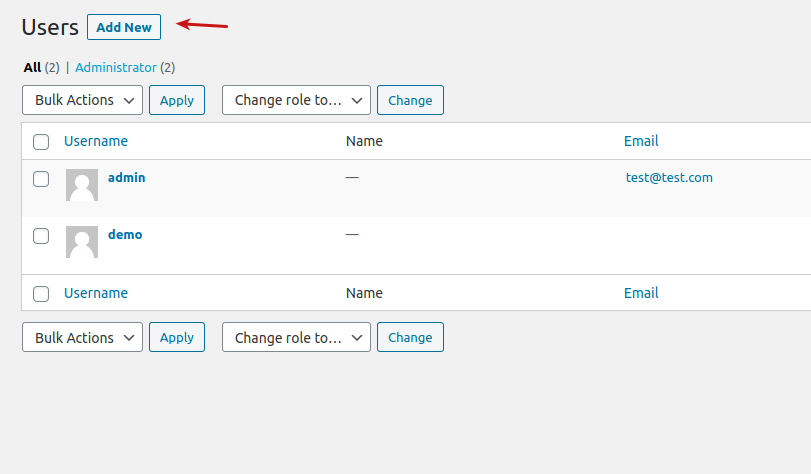
- Add a user in the “Editor” role.
- Click “Add New User”.

- Repeat this process for other WordPress roles.
At the end of this process, your screen should look like the image below.

Now that you have user accounts, you can test the User Testing feature.
- Hover your cursor over the user with the Author role.
- Click “Test this user”.

The first thing you will notice is that the dashboard has changed. An Editor is not allowed to switch themes or install plugins, for example. They are not allowed to access the Users screen.
It is possible to switch back to the admin user, by clicking the “Return to Administrator” link below the title. There is a similar link under the profile picture on the top right of the screen.

Now that you’ve tested the Author role, it’s time to test more roles.
- Switch between other user roles.
- Create one post per user role.
For example, try creating content as Contributor. You will see a “Submit for Review” button instead of “Publish” (read about the difference between Draft and Pending Review). This is because Contributors are allowed to create but not publish content.

The Contributor role is not allowed to manage Tags or Categories so you won’t see those menu links. You also won’t be able to see content written by other users.
Common Uses for User Testing
- Testing membership site permissions.
- Verifying WooCommerce customer experiences.
- Reviewing editor and author permissions.
- Troubleshooting user access problems.
- Testing custom roles created with PublishPress Capabilities.
- Validating permission changes before going live.
User Testing vs Logging in as Another User
Both approaches allow you to view WordPress from another user’s perspective. However, user switching plugins provide a faster and more secure workflow because administrators can switch accounts without handling passwords or managing multiple browser sessions.
More on User Testing
User switching plugins make it much easier to test WordPress permissions, troubleshoot user access issues, and verify the experience of different roles on your site. Instead of managing multiple accounts or constantly logging in and out, administrators can instantly view WordPress from another user’s perspective and quickly identify permission problems.
If you’re interested in managing WordPress permissions more effectively, explore our guides on creating and managing custom roles, understanding WordPress User Role Levels, and allowing users to manage lower-level accounts. You may also find our tutorial on granting permissions to a single user useful, along with our guide to allowing multiple users to edit a single WordPress post. Together, these tools and techniques can help you build a secure, flexible, and easy-to-manage WordPress permission system.
The Best Plugin to Control Your WordPress Users
PublishPress Capabilities enables you to customize what users see in every area of WordPress from editing posts and pages to admin menus, profile pages.

